



Sending custom notifications 💌
-
Marcel
SMS and email notifications can be found in the same-named notification tab at the bottom of the menu bar. In addition to basic parameters such as the content of the notification, the type (SMS or email), we can also choose the time of sending for which services the notification is sent. In this blog post, we will introduce the notification sending options offered by the Lime Booking app.
1. Adding a new notification
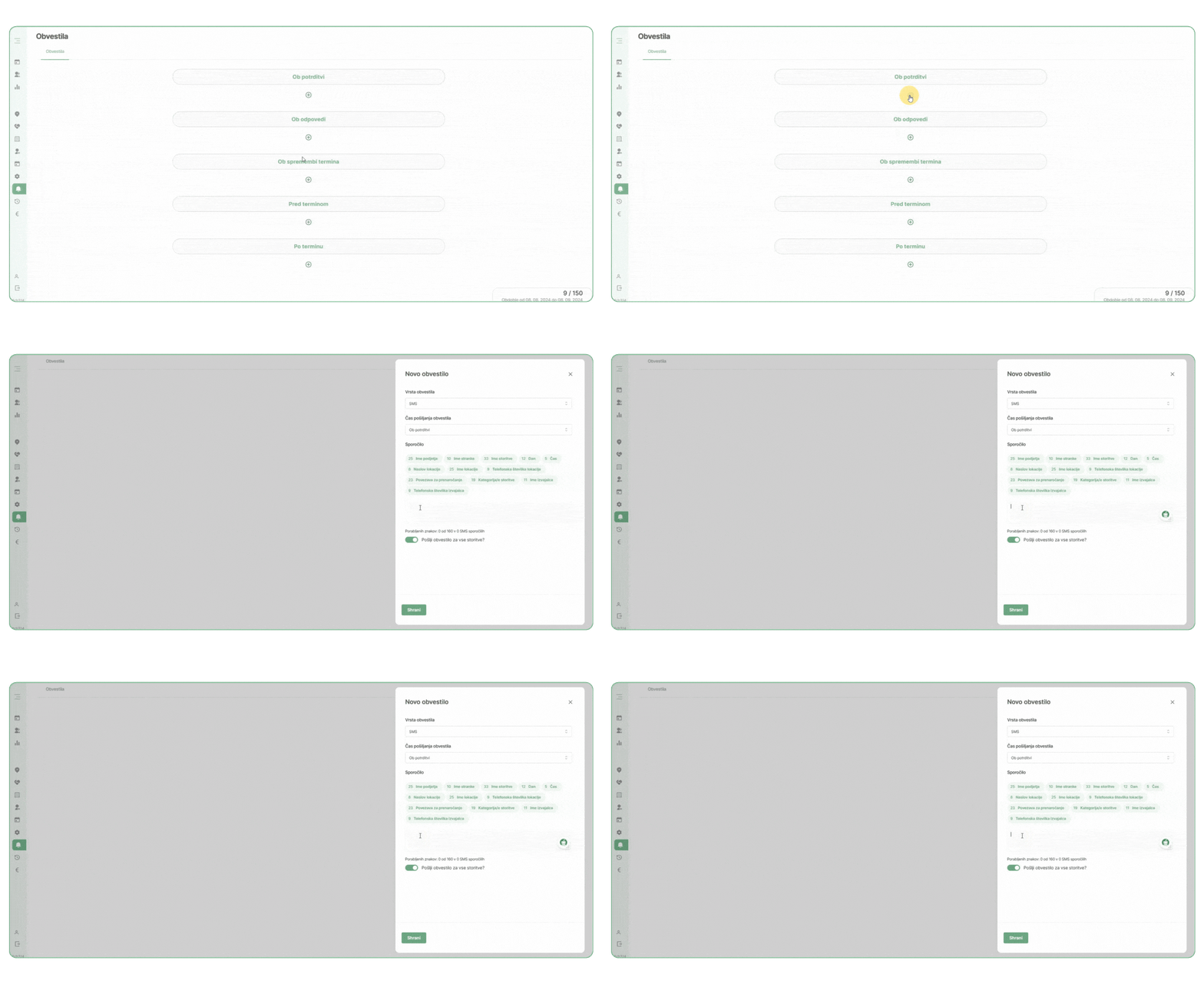
First, find the notifications tab. By clicking the plus button, you start the process of adding a notification.
2. Entry of texts
By clicking on the button, we start the process of adding a message.
Type of notification
With a range of notifications, you can choose whether you would like the notification to be an email or SMS message. You can also have a combination of both.
*Only email notifications are available for the basic package.
Time of sending the notification
You can choose the sending time before starting to type the text by clicking on the button below the selected sending time. You can also change it during the actual adding of the notification.
Message
You can enter any message in the message field, which is limited to 160 characters. To optimize the length of SMS messages, we have prepared some suggestions for you at the end of the blog post that you can use.
Send a notification for all services
You can customize the content of the notification based on the types of services you provide. If you would like a different content for certain services, simply disable the notification button for all services and choose which services you would like to send different content for.
Characters used
The application counts how many characters you have spent on the notification. The limit for SMS messages is 160 characters. If you exceed this limit, the SMS message is split into 2 or more SMS messages. The number of characters also depends on the use of emojis (😁🤗😎😴🔥).
The number of SMS messages used can always be seen in the notification tab, namely in the bottom right corner.
Explanation of dynamic polishes
Dynamic fields serve the purpose of allowing you to insert different content into notifications intended for customers.
Name of the company: Here your company name is displayed (e.g. Kozmetični Studio Limetka). You can see the company name right below the user tab at the bottom left.
If you would like to change the name, please contact us at info@lime-booking.com.
Name of the party: This field prints the customer's name (e.g., Hello, Ana…)
Name of the service: This field prints the name of the service (e.g., …subscribed to Permanent painting…)
Day: prints out the date of the appointment (e.g. 8. 9. 2024…)
Time: prints out the time of the appointment (e.g., at 16.00…)
Address of the location: prints out the address of the location (e.g. Cesta 5, Ljubljana)
Name of the location: prints the name of the location (e.g. Salon Ljubljana)
Phone number of the location: prints the phone number of the location/salon (e.g. 031 333 333)
Link for pre-order: it outputs a link that is unique to each client with all their appointments that they have the option to book in advance or cancel and also reserve a new appointment (e.g. https://form.lime-booking.com/sl/customer/lb3l333)
Service category: it displays the label or category in which the service is located (e.g. Manicure)
Name of the performer: it lists the name of the contractor who will provide the service for the client (e.g. May)
The performer's phone number: prints out the contractor's phone number, in case you would like to have customers contact you (e.g. 041 444 444)
Numbers in front of the fields
They tell us how many characters the notification will occupy in this field. This helps you not to exceed the number of characters.
3. Adding different notifications
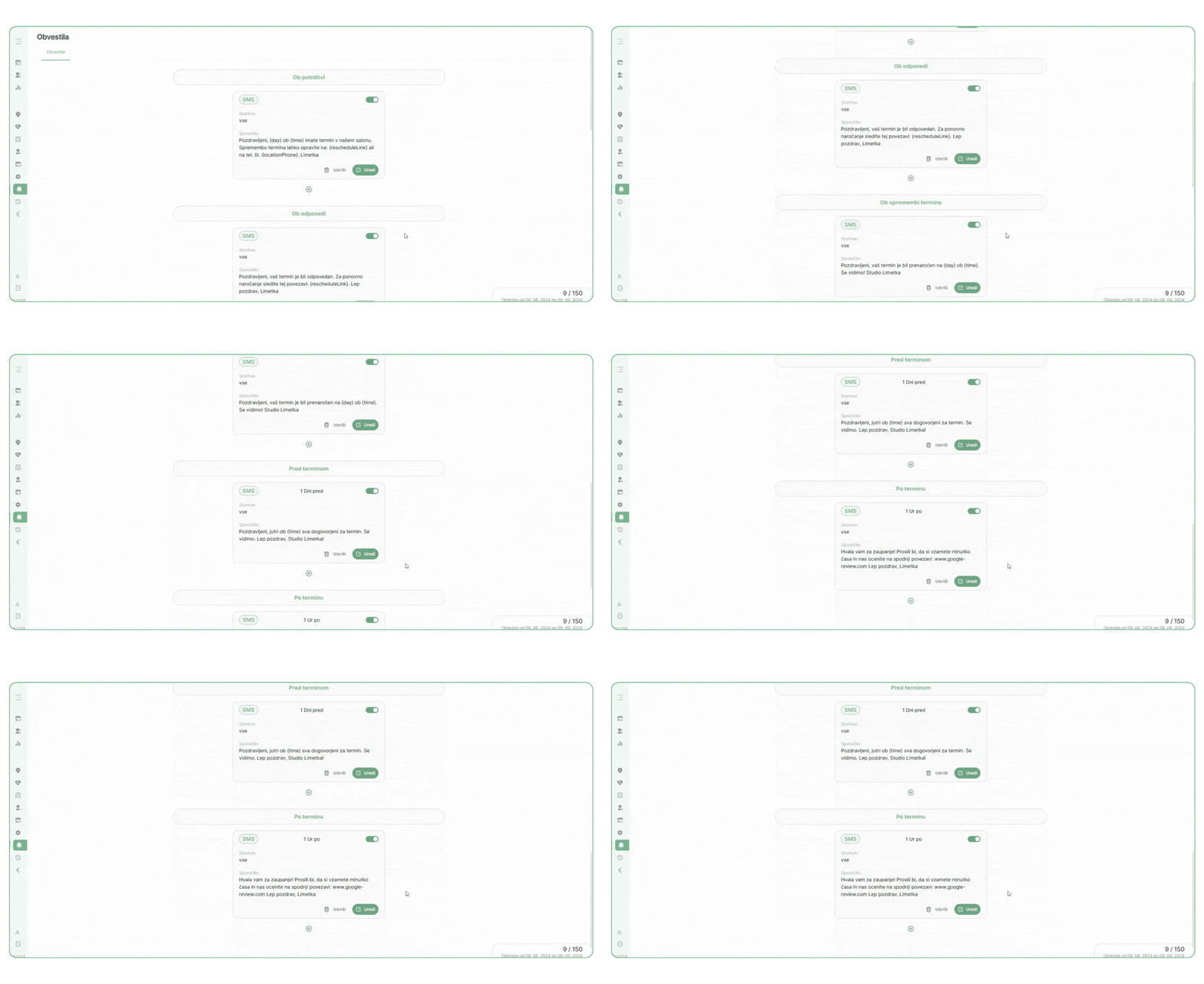
You can send notifications at different times and events:
- Upon confirmation: This notification is sent immediately after the customer registers for an appointment or when you create an appointment for the customer.
- Upon cancellation: The notification is sent if the appointment is cancelled.
- With the change: The notification is sent when the appointment is rescheduled to a different date or time.
- Before the appointment: The client can receive a reminder message before the appointment. They can receive it a few days, hours, or minutes before the appointment.
- After the deadline: The customer receives a notification after the deadline. You can include a thank you for the trust in this notification or add a link so they can leave you a review.
4. Notification of individual appointments
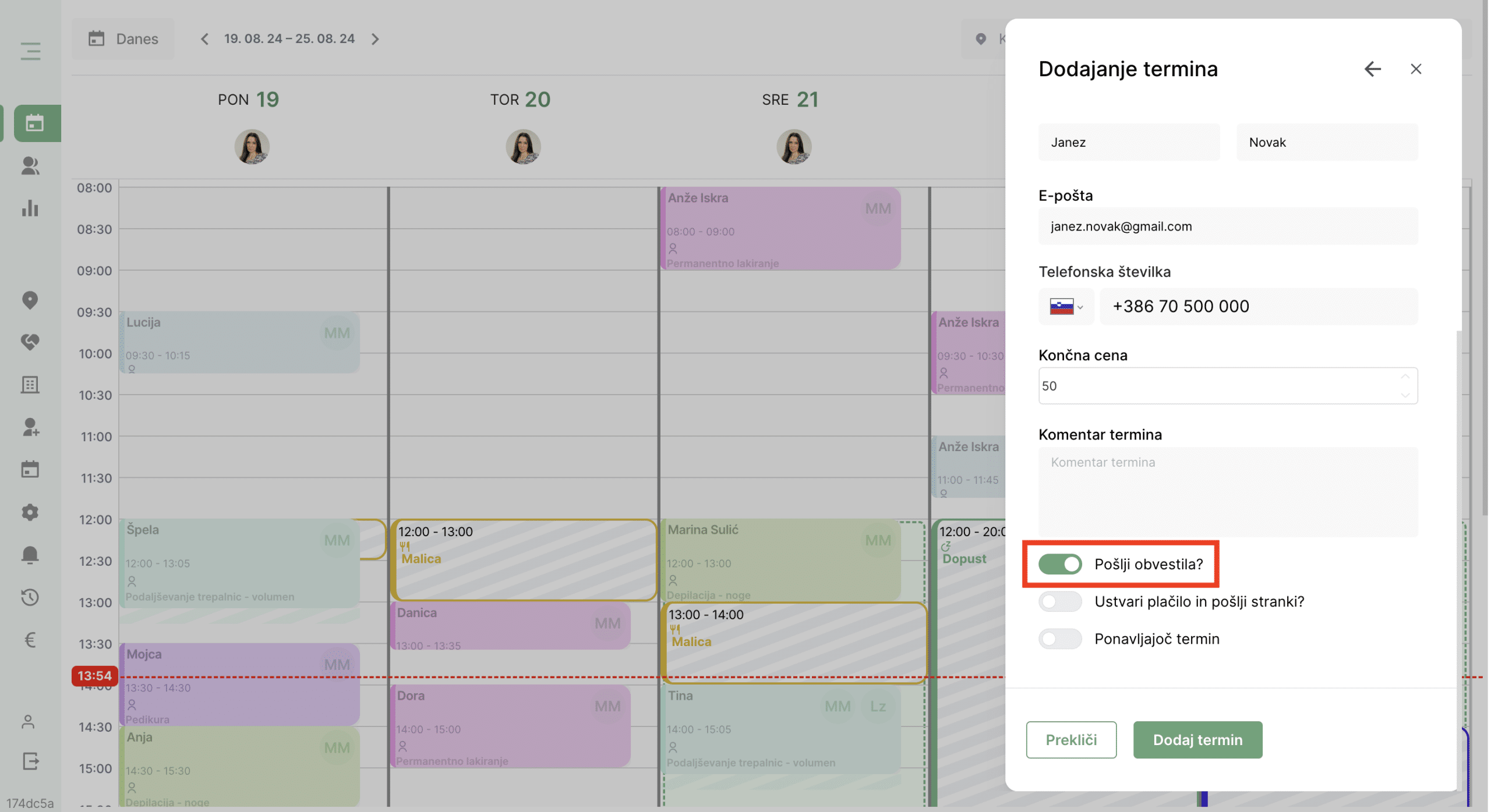
We can also regulate notifications when adding or rescheduling appointments.
Before adding a date, you can choose not to send a notification to the customer. To do this, change the check mark next to the text “Send notification?”.
Checking the sent notifications
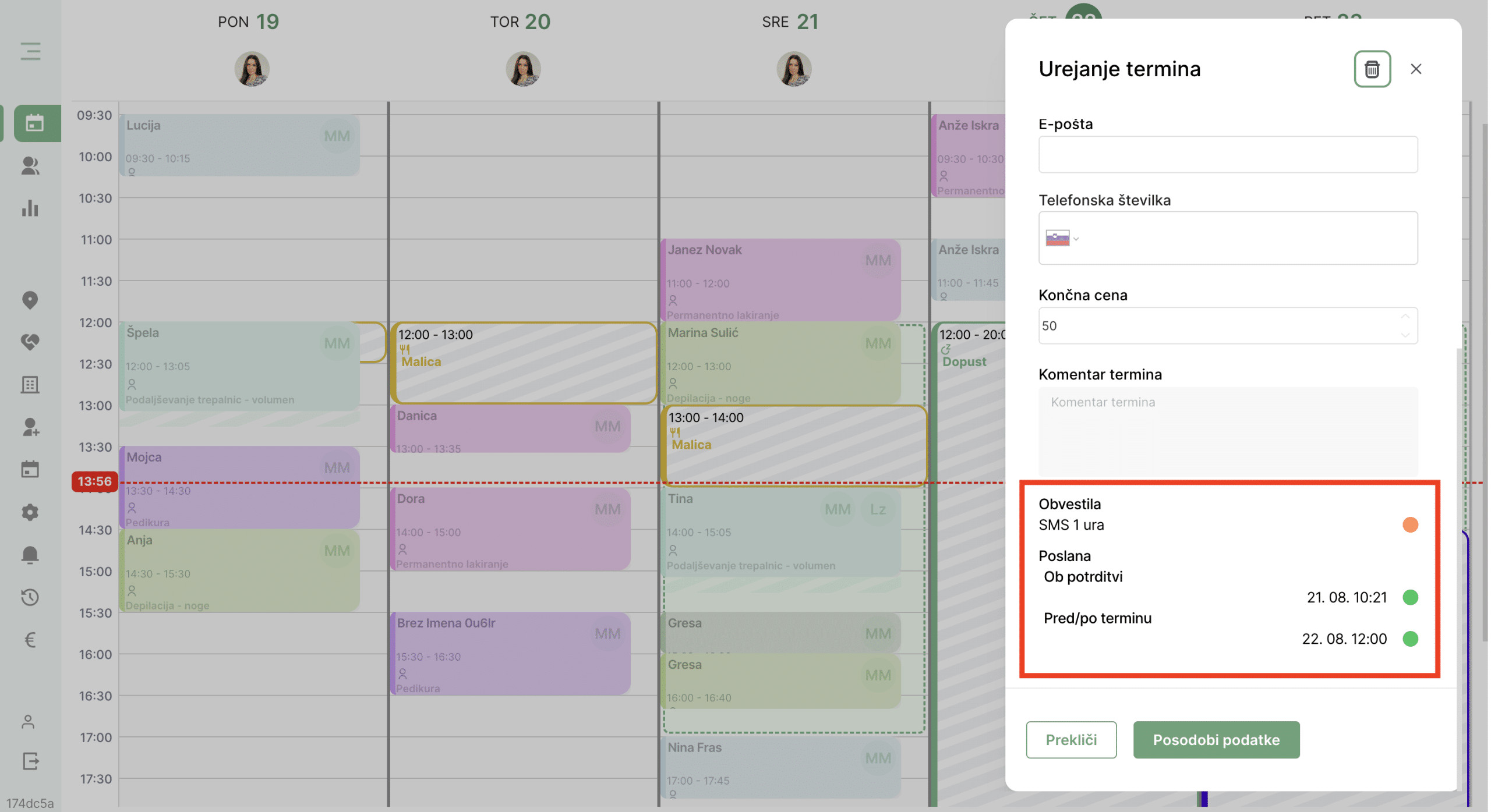
At a particular time, you can check whether all notifications have been sent. If the traffic light is green, the notification has been sent; if it is yellow, the notification indicates that it is scheduled to be sent when it should be, while a red light indicates that an error has occurred and the notification has not been sent. This may be due to the phone number not existing or the customer having a block on advertising messages. In any case, we recommend that you contact us to verify it.
If the field is empty, it means that the notification has not been sent. This happens if we uncheck ‘Send notification?’ when adding a term.’
5. Draft messages
We have prepared some suggestions for notifications at different times.
Upon confirmation
Hello,
{day} If you {time} have an appointment, follow this link to manage your appointments: {rescheduleLink}
Kind regards, {businessName}
Hello {clientName}!
I hope you are happy {day} with the {time} successful order on {serviceName}.
Thank you and best regards! Limetka
{locationPhone}
Before the appointment (1 day in advance)
DO NOT FORGET!
Tomorrow {day} at 10 am you {time} have an appointment {businessName}.
See you soon!
After the deadline
Thank you for your trust!
We would ask you to take a minute of your time and rate us at the link below: www.google-review.com
Kind regards, {businessName}
Upon cancellation
Hello,
Your appointment has been cancelled. For a new appointment, booking follow this link: {rescheduleLink}.
Kind regards, {businessName}
With the change
Hello,
Your appointment was booked for the day {day} at {time}.
See you soon! {businessName}
The Lime Booking team thanks you as always for your use and contribution to the development of the system. We will continue to strive to improve your ordering, management, and customer communication process with regular updates and the addition of new features!
If you encounter any questions while using it, feel free to contact us at info@lime-booking.com or on the phone number. 040 234 606
Marcel
Others publications

How to add employee vacations in Lime Booking
Summer is holiday season. Learn how to add employee leave in Lime Booking in just a few clicks and automatically block appointments during their absence.

New feature: Waiting list — cancelled appointments are now filled automatically
New Waiting List feature in Lime Booking: clients join the waiting list for a fully booked appointment, and when a spot opens up, the system notifies them automatically. Fewer empty appointment slots.

UNIKAT: Lecturer Edis Osmanović
Join us for an event with Edis Osmanović — barber, entrepreneur and one of the most influential names in contemporary barbering culture in the Balkans.

Test Lime Booking free!
Online calendar, automatic SMS notifications, online booking and much more – just one click away!