




Summer is holiday season, so it’s important to keep your salon’s schedule up to date in good time.
If you don’t add employee leave to the system, clients can still book appointments while employees are away, which means extra coordination, rescheduling appointments and unnecessary administration.
How to add employee leave?
Adding employee leave is simple and only takes a few moments:
- Open Schedules and select the Leave tab.
- Click Add leave.
- Select the location and employee.
- Set the leave period.
- Mark the absence as lasting all day and select Leave as the absence type.
- Add a note if you wish.
- Click Save.
After saving, all appointment slots in the selected period will be automatically blocked, so clients won’t be able to book a time when the employee is not in the salon.
More than just leave
This functionality isn’t just for annual leave. You can use it in the same way to add other types of absence, such as:
- meal breaks,
- sick leave,
- shorter breaks during working hours,
- other internal absences.
You can review and filter all absences at any time by employee, absence type or selected time period, giving you a quick overview of your entire team’s availability.
Watch the video guide
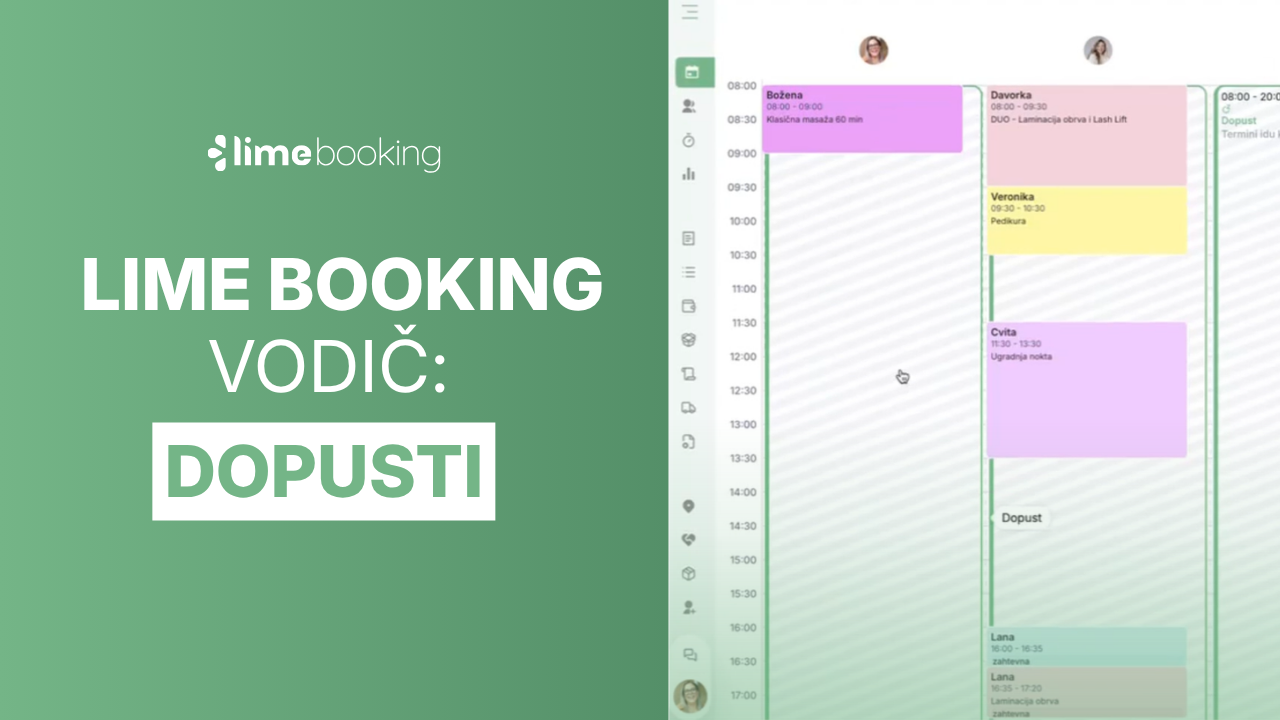
We’ve prepared a short video guide in which Jelena shows you step by step how to add employee leave in Lime Booking and make sure your schedule is ready for the summer season.
FAQ
1. Can clients book an appointment while an employee is on leave?
No. Once you save the employee leave, Lime Booking automatically blocks all appointments in the selected period, so clients cannot book during that time.
2. Can I add other types of absence in the same way?
Yes. In addition to annual leave, you can add meal breaks, sick leave, shorter breaks during working hours and other internal absences.
3. Can I add leave for each employee separately?
Yes. When adding the absence, you select the location and a specific employee, so it applies only to them.
4. Can I add an absence that doesn’t last all day?
Yes. If the absence does not last all day, leave the “all day” option unchecked and set the desired time period — ideal for shorter breaks during working hours.
5. How can I review all added absences?
You can review and filter all absences at any time by location, employee, absence type or time period, giving you a quick overview of your team’s availability.
Marcel
Other posts

How to add employee vacations in Lime Booking
Summer is holiday season. Learn how to add employee leave in Lime Booking in just a few clicks and automatically block appointments during their absence.

New feature: Waiting list — cancelled appointments are now filled automatically
New Waiting List feature in Lime Booking: clients join the waiting list for a fully booked appointment, and when a spot opens up, the system notifies them automatically. Fewer empty appointment slots.

UNIKAT: Lecturer Edis Osmanović
Join us for an event with Edis Osmanović — barber, entrepreneur and one of the most influential names in contemporary barbering culture in the Balkans.