





Adding and editing schedules is easy! 🗓️

Adding and editing employee schedules - Lime Booking

1. Create an employee schedule

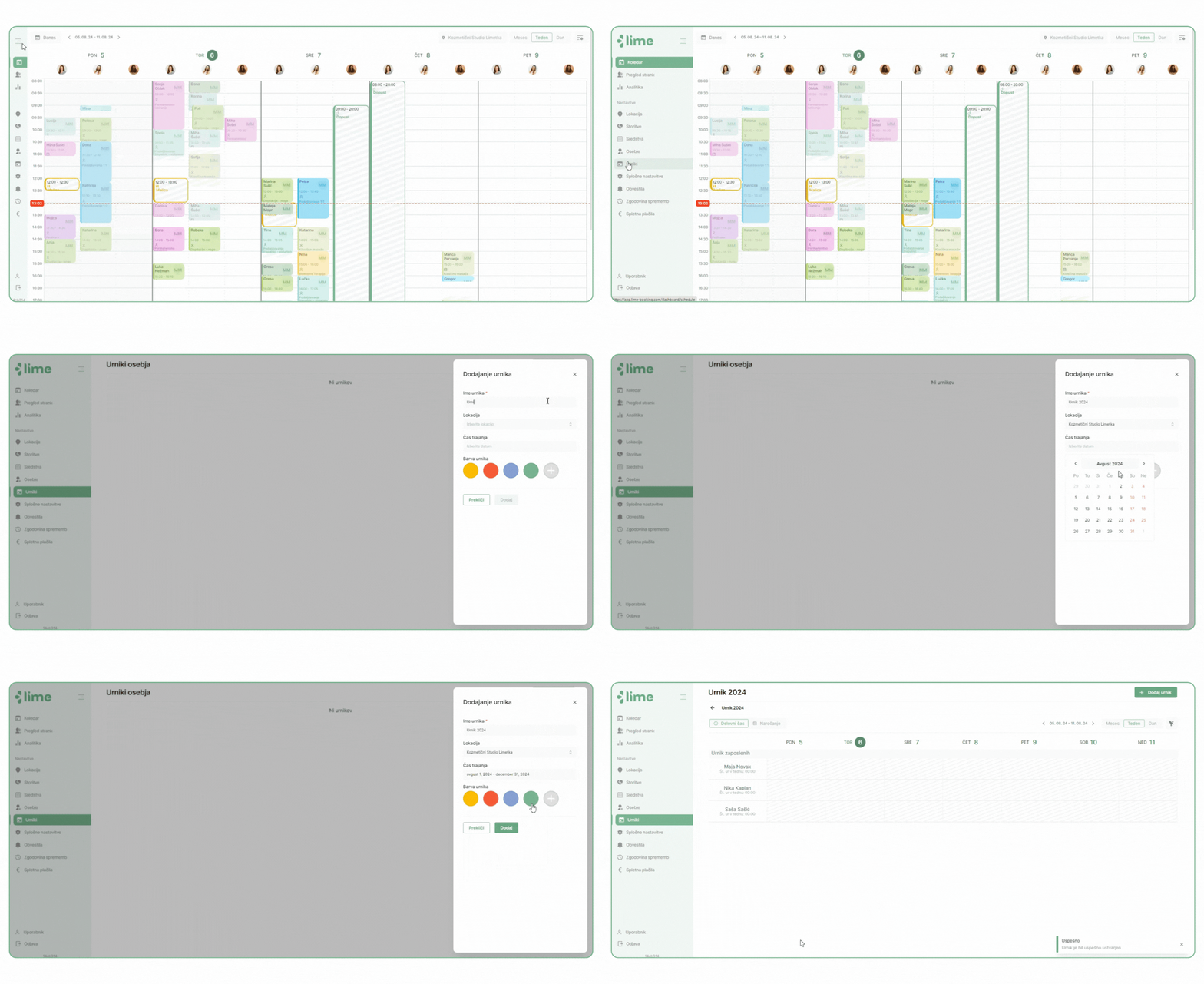
To create schedules, click on the "Schedules" tab in the left menu bar. Then click on the button “Add schedule” in the upper right corner.

  • In the pop-up window, fill in the schedule information: name, location, color, and the duration from when it applies to when it expires.
  • By clicking on the add button, you will then be presented with the created schedule.

Adding in various ways is shown in the following paragraphs.

2. Adding the schedule by days

  • Click on the selected date for which you want to create a schedule. A pop-up window will appear where you turn on the “Working day”Under this, you enter when you want to start and when you want to end the workday. 
  • Under the section “Working day” You have the option “Ordering”. If you use the online system booking, you enter the hours you would like your customers to order from. If you do not enable this, your customers will not be able to order online at the time you have selected. You also have the option to customize the time when customers can order online.
  • You can also enable repetition, which gives you the option of how many times this schedule repeats. It can be repeated weekly, every 2 weeks, or on specific dates.
  • Save the schedule at the end of editing.

3. Adding a schedule for the whole week

  • First, click on the employee's name, where a pop-up window with the days of the week displayed opens.
  • In the same way as when adding terms by days, you also add a schedule for the entire week (displayed in a GIF).
  • The options with repetitions are the same as when adding a schedule by days.

4. Adding schedules for multiple employees at the same time

  • Scroll to the top right corner, where you click on the button “Add schedule”.
  • The view opens up the same way as when adding a schedule for the whole week.
  • Above, we simply indicate which employees we want to add to the schedule.

The Lime Booking team thanks you as always for your use and contribution to the development of the system. We will continue to strive to improve your ordering, management, and customer communication process with regular updates and the addition of new features!

If you encounter any questions while using it, feel free to contact us at info@lime-booking.com or on the phone number. 040 234 606

Picture of Marcel

Marcel

Others publications

Test Lime Booking free!

Online calendar, automatic SMS notifications, online booking and much more – just one click away!