






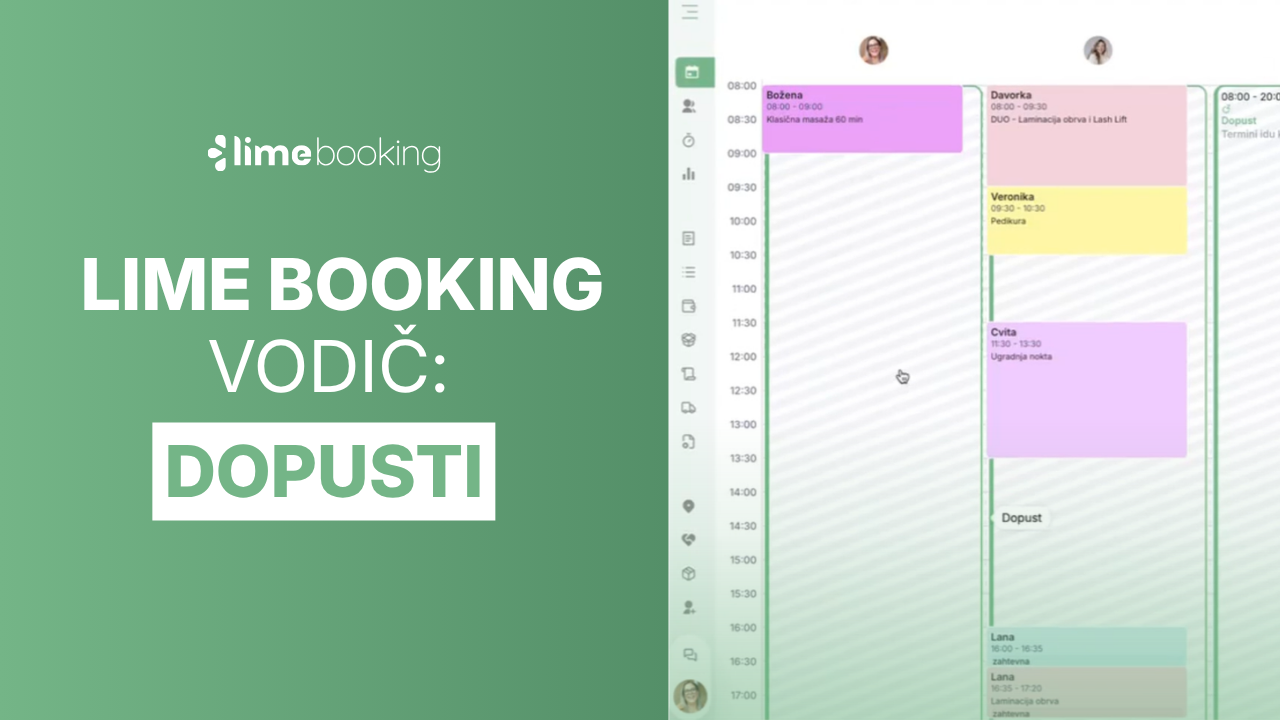
Have you already added vacation days to your schedules?

Are you going on vacation and you are worried that customers might not be able to book, or you are not sure how to correctly mark the vacation so that no wrong bookings occur?

We have prepared short instructions on how to easily mark your free and busy days. 

1. Open the Timetables tab

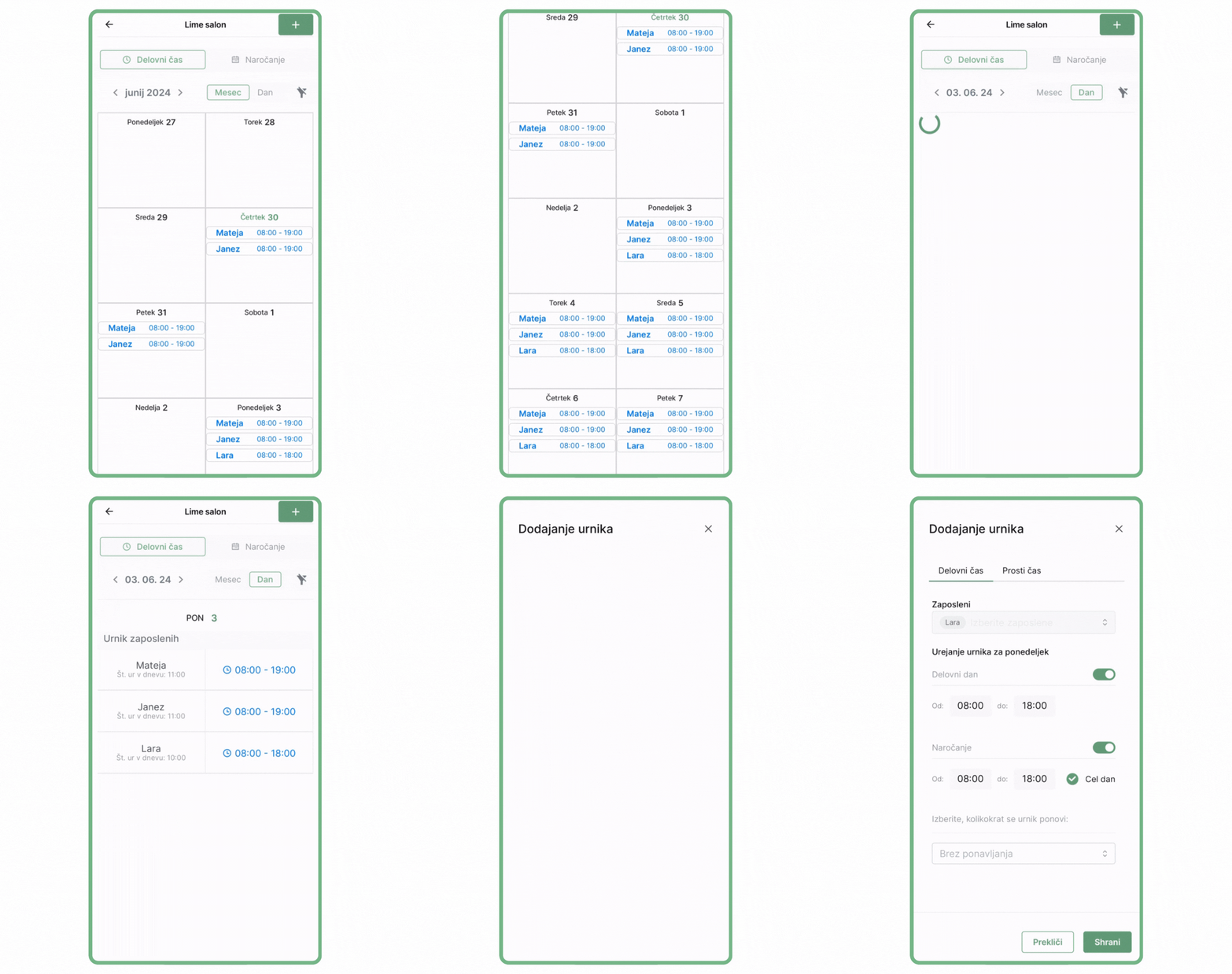
Open the tab ”Urniki’‘ and select the schedule where you would like to add the vacation (if you have more than one).

2. Select employees and the start date of the leave

You will see the dates and names of the employees (if you have more than one).

You choose the date when you would like your vacation to begin.

3. Choose the days of vacation

You click on a date (as if you wanted to edit the working day).

When the schedule editing window appears, scroll down to the option for repeating the schedule. Here you choose the option. Specific dates.

A mini calendar appears where you choose the days you would like to have a vacation.

Then select the tab free time and then select a category vacation.

You can also write a comment next to it that is visible only to you and not to your clients. Your clients will also not see that you are on vacation; only free appointment times for that period will not be available.

3. Enjoy your well-deserved vacation without worries!

Team Lime Booking As always, we thank you for your use and your contribution to the development of the system. We will continue to strive to improve your ordering, management, and customer notification process with regular updates and the addition of new features!

If you encounter any questions while using it, feel free to contact us at support@lime-booking.com or on the phone number. 040 234 606

Picture of Marcel

Marcel

Others publications

Ready to transform your business?

Join 100+ successful salon ownersthat have simplified their operations and gained more clients with Lime Booking.